Windows
Download the server
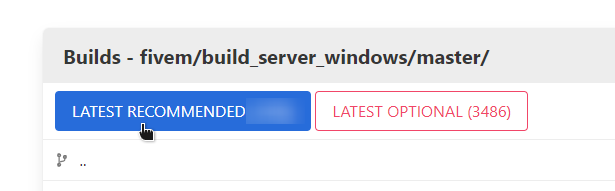
Go to the Windows server build listing ('artifacts' listing, as in 'build artifacts').
Download the latest recommended build.
Open the
server.7zyou just downloaded. Use any third-party archiving tool (such as 7-Zip or WinRAR) to open the.7zfile.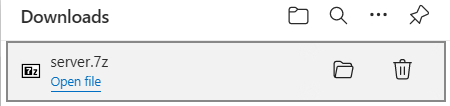
Extract it somewhere you want to store it. We'll pick
C:\FXServer\server.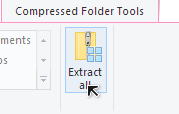
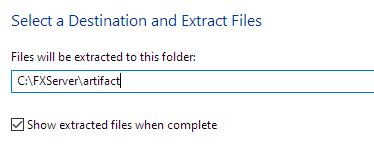
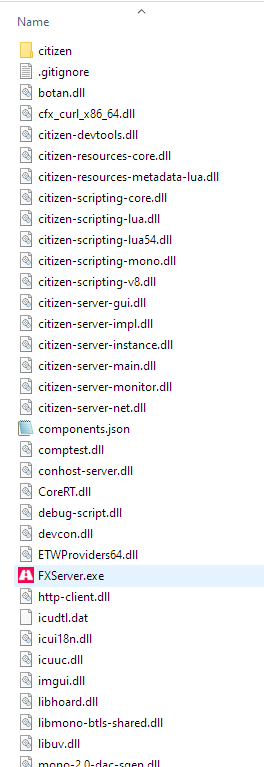
Open the folder you just extracted it to. It should look a little like this:
Start the server
Double click
FXServer.exe.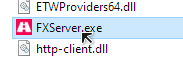
This site should open in your browser. Make sure a PIN is filled, and click
Link Account.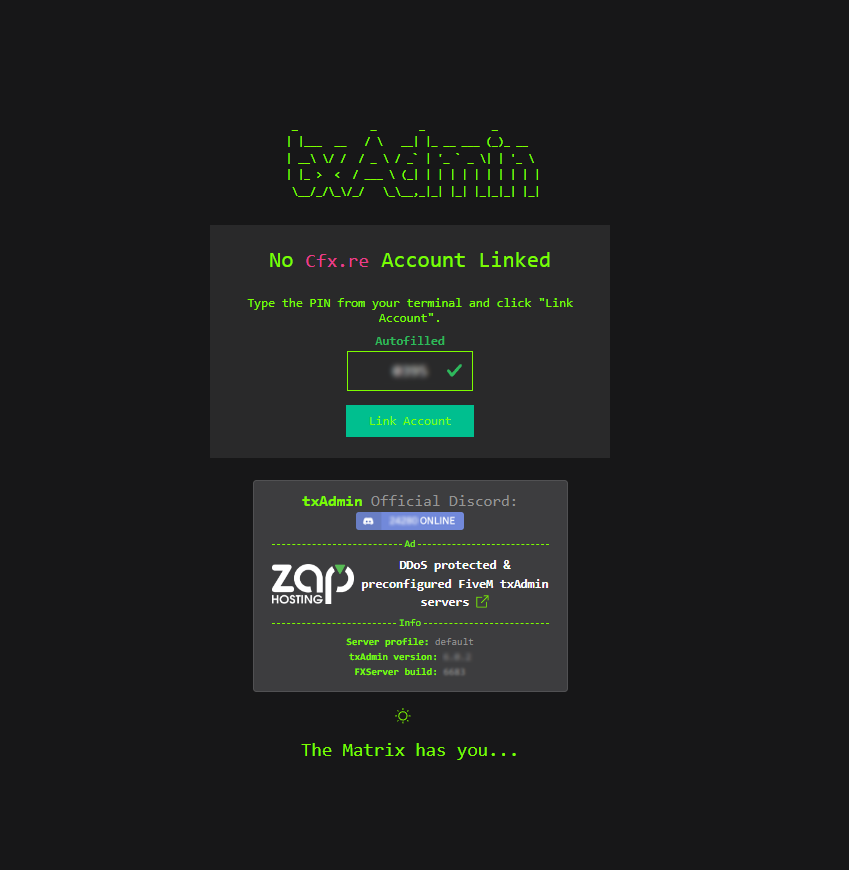
Log in to your account on Cfx.re in this tab and then click
Yes, Allow.
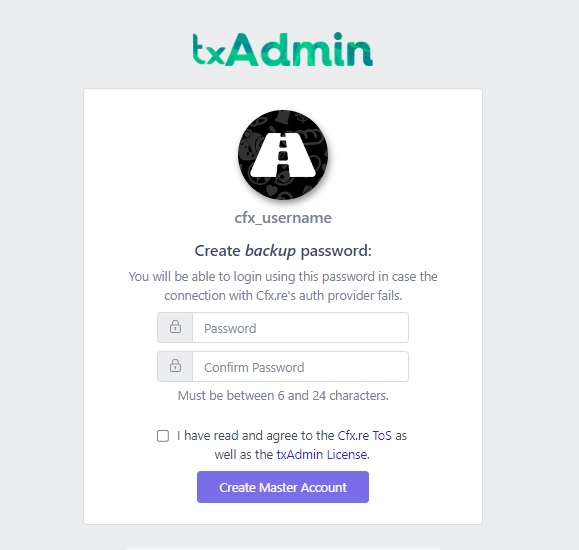
Create a password to sign up to your server's admin page.
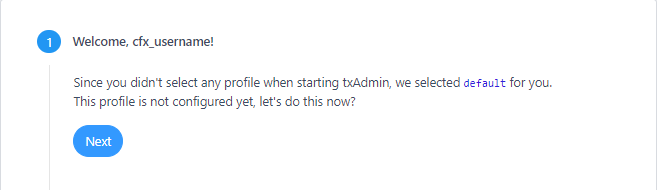
Click 'Next'.
Type a name for your server and click 'Next'.
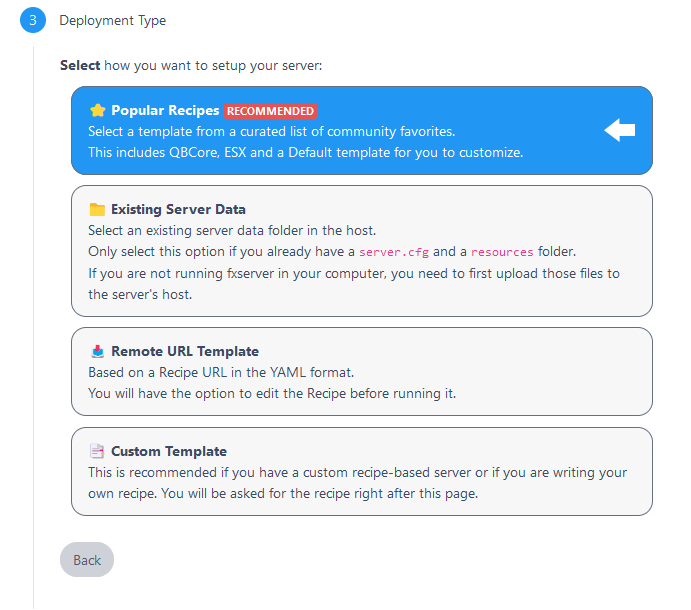
Select 'Popular Recipes'.
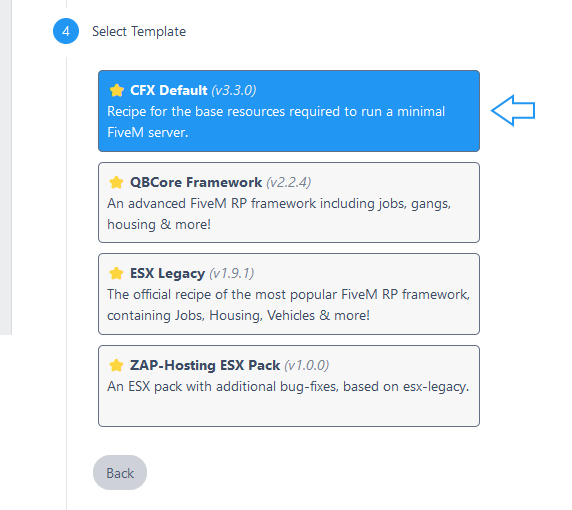
Pick the 'CFX Default FiveM' template for now. Other templates may exist, but some will require a database server.
Click 'Save' or select another path.
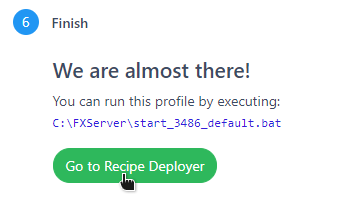
Go to the 'Recipe Deployer'.
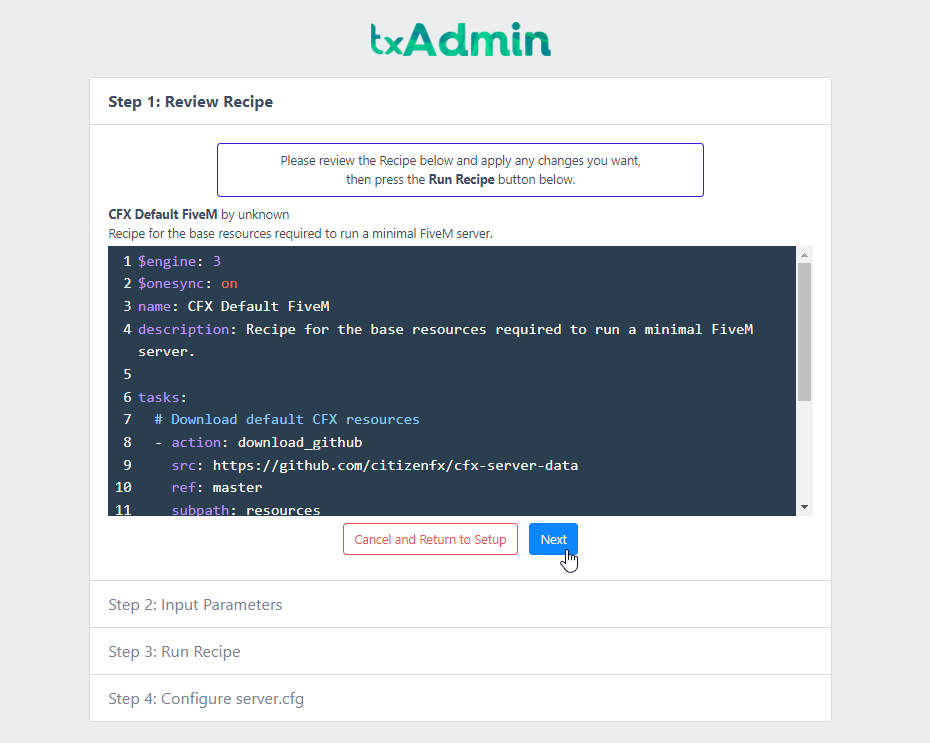
 11. Click 'Next' once you're sure the recipe looks fine. It should be fine the way it comes.
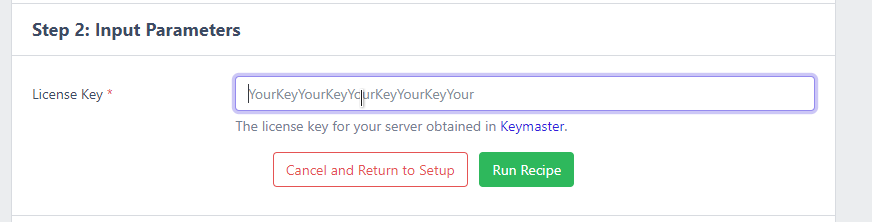
 12. Enter the key you just made on the Portal in the 'Before you begin' step and click 'Run Recipe'.
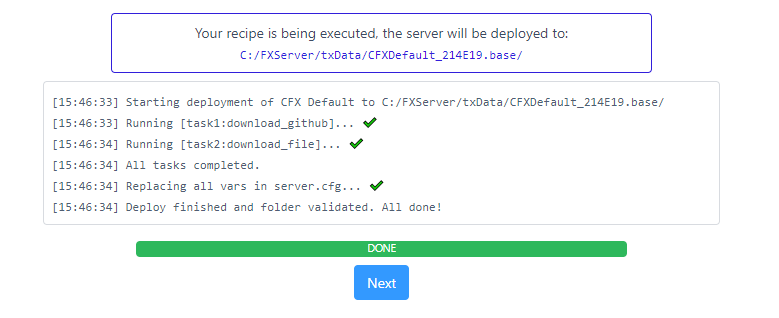
 13. If everything's correct, you can click 'Next' again.
 14. ... and finally, "Save & Run Server", and you're done!
Troubleshooting
If you're facing slow server startups, refer to this.